
windows update error code 80073712
Troubleshooting the Windows Update Error Code 80073712
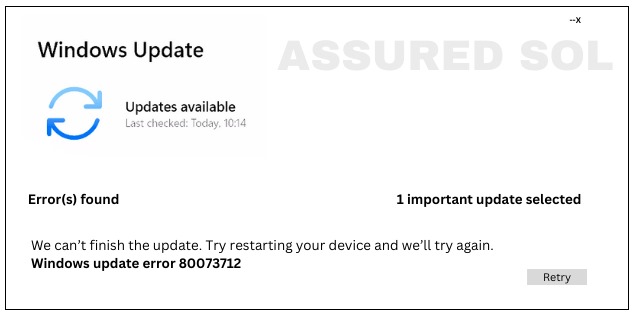
Windows Update Error Code 80073712 is a crucial component of maintaining a healthy and secure operating system. However, users may encounter Windows Update Error Code 80073712 during the update process, indicating potential issues that need attention.
Understanding Error Code 80073712:
Error typically points to file corruption or missing files in the Windows Update component. This can hinder the update process and leave your system vulnerable to security threats.
Possible Causes to fix Error Code 80073712 :
- Corrupted System Files: Essential system files required for Windows Update might be corrupted.
- Incomplete Update Installations: A previous update installation might not have completed successfully.
- Malware or Third-Party Interference: Malicious software or third-party applications can disrupt the update process.
Quick Troubleshooting Steps to fix Error Code 80073712:
This article aims to provide a detailed guide on understanding and resolving the Windows Update error code 80073712. Follow the Below steps to get rid this Error
Run Windows Update Troubleshooter:
- Open Settings.
- Go to Update & Security.
- Select Troubleshoot.
- Run the Windows Update Troubleshooter.
Check Disk Utility:
- Open Command Prompt as Administrator.
- Type chkdsk /f and press Enter.
- Allow the process to complete and restart your computer.
Reset Windows Update Components:
- Open Command Prompt as Administrator.
- Stop the BITS, Cryptographic, MSI Installer, and Windows Update Services.
- Delete the qmgr*.dat files.
- Restart the stopped services.
SFC (System File Checker) Scan:
- Open Command Prompt as Administrator.
- Type sfc /scannow and press Enter.
- Allow the scan to complete and follow any repair instructions.
DISM (Deployment Image Service and Management Tool):
- Open Command Prompt as Administrator.
- Type DISM /Online /Cleanup-Image /RestoreHealth and press Enter.
- Be patient as the process may take some time.
Remove Software Distribution Folder:
- Stop Windows Update service.
- Navigate to C:\Windows\SoftwareDistribution.
- Delete all files and folders within this directory.
- Restart the Windows Update service.
Check for Malware:
Run a thorough antivirus scan to ensure your system is not compromised.
Conclusion:
Following the troubleshooting steps outlined in this guide should help restore the functionality of Windows Update, ensuring your system remains secure and up-to-date. If the Error 80073712 persists, consulting Microsoft Support or seeking assistance from a professional may be necessary.